
Scheduling
The week you can see at a glance
See your jobs by the day or the whole week. Drag a job to move it, and the app warns you if it overlaps another one.

Try it
Grab a job and move it
Drag a job to another hour. Drop it on another job and the two sit side by side.
Tuesday, 1 September
07:00
08:00
09:00
10:00
11:00
12:00
13:00
14:00
15:00
16:00
17:00
Marija KovačReplace the tap
Anže NovakRadiator valves
Petra ZupančičWindow seals
- Day or week
- Switch between a single day and the whole week. A line shows the current time.
- One click to add a job
- Click a free hour and the form opens with the time already filled in.
- Drag to move
- Pick a job up and drop it on a new time. The length stays the same. On a phone, hold the job first.
- Two jobs at once
- Two jobs can share a time, for two people say, and sit side by side in the schedule. While you drag, the app tells you they overlap.
- Jobs and visits
- Jobs and visits are marked differently, so you see at once where you will work and where you are only going to look.
- Jobs with no date yet
- When the time is not agreed, the job goes on the Waiting list. It stays there until you give it a day, and takes up no room in the schedule.
Not sure when you are free?
The app scans the next two weeks and offers free slots long enough for the job. It looks Monday to Saturday, between seven and five.
- The suggestion accounts for how long the job takes.
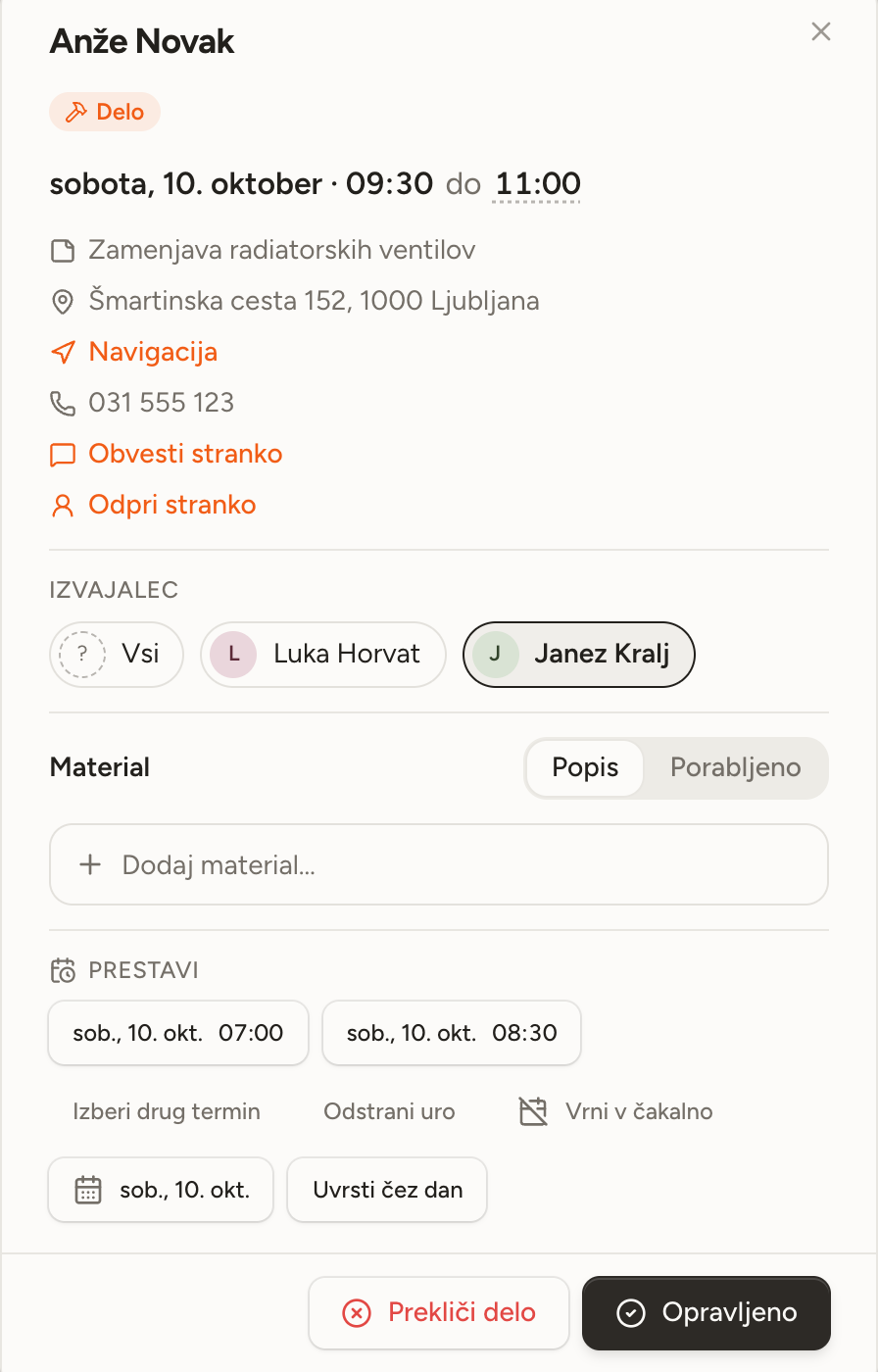
- Move a job straight from its own window.
- A job with no set time counts for the whole day and takes no hour.
Start with next week
Open an account without a card, add your first customers and lay out the week.